What is it?
Slowmo is a transformation that twists normal time into something thick and unreal, like the world is moving through syrup. It changes the rhythm of action by stretching it out until every movement feels deliberate, intense, and slightly unnatural.
Movie example
In the first battle of 300, slow motion is not just a visual trick, it is an audio design strategy. When the Spartans clash with the Persians, the mix alternates between real-time chaos and stretched-out, sculpted impact. The shift is immediate: the music pulls into slower, longer strokes, like someone grabbed the tempo by the throat.
Then the scene snaps back toward normal speed and the contrast does the work. The return of sharper transients and busier texture makes the battlefield feel suddenly crowded again. For a GM, that is the lesson: use Slowmo as a controlled pocket. Drop into it for a strike, a fall, a saved life, a brutal finish. Let the music stretch and the impacts bloom so the table feels the weight of the moment. Then restore time and let the rush of normal sound feel like the cost of continuing.
What to use it for?
As a Game Master, you start in a normal, safe beat: the party has the upper hand in a clean fight, a confident plan, clear sightlines, predictable enemies. Then Slowmo arrives like a command from the universe. An arrow leaves the bow and the room stretches. Footsteps become drawn-out thuds. The players hear their own breathing louder than the battlefield. Every choice becomes a spotlight moment: step left, raise the shield, commit to the strike. The fight is still happening, but the scene is no longer about “who wins.” It is about “what it costs.”
Use this technique for:
- Turning a chaotic fight into a sequence of decisive, cinematic micro-moments.
- Signaling a critical hit, a near-death dodge, or a fate-changing decision.
- Making violence feel weighty by letting players hear the time between actions.
Do It with Music Master!
- From the main menu, select “Create Cinematique…”. The Cinematic Techniques Assistant window will appear.
- Choose the “Slow Motion” technique by clicking the “Select” button.
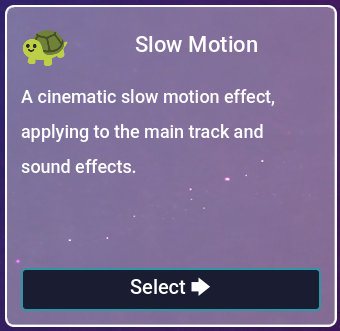
Fig. 1 - Slowmo effect.
- In the next window, fill in the following fields:
- Backdrop track (required) - the track playing in the background during the entire scene. It will be slowed down during the effect. 1. Speed (percent) - playback speed during slow motion, 1.0 means 100% speed , 0.5 means half speed, etc.
- Transition duration - transformation time in seconds.
- Muffle - check this if you want for the music and sounds to be muffled.
- Muffle gain (dB) - how much volume to add to the effect. Keep it high if you don’t want to lower the volume too much.
- Sfx1 .. Sfx5 - select sound effects that you want to apply the effect to. Optional.
- (Optional) If you don’t have suitable tracks, click the “Use Samples” button and choose one of the available examples. The fields above will be filled automatically with tracks included in the program.
- Click the “Create” button.
- You will be taken to the Composition view. It should look like this:
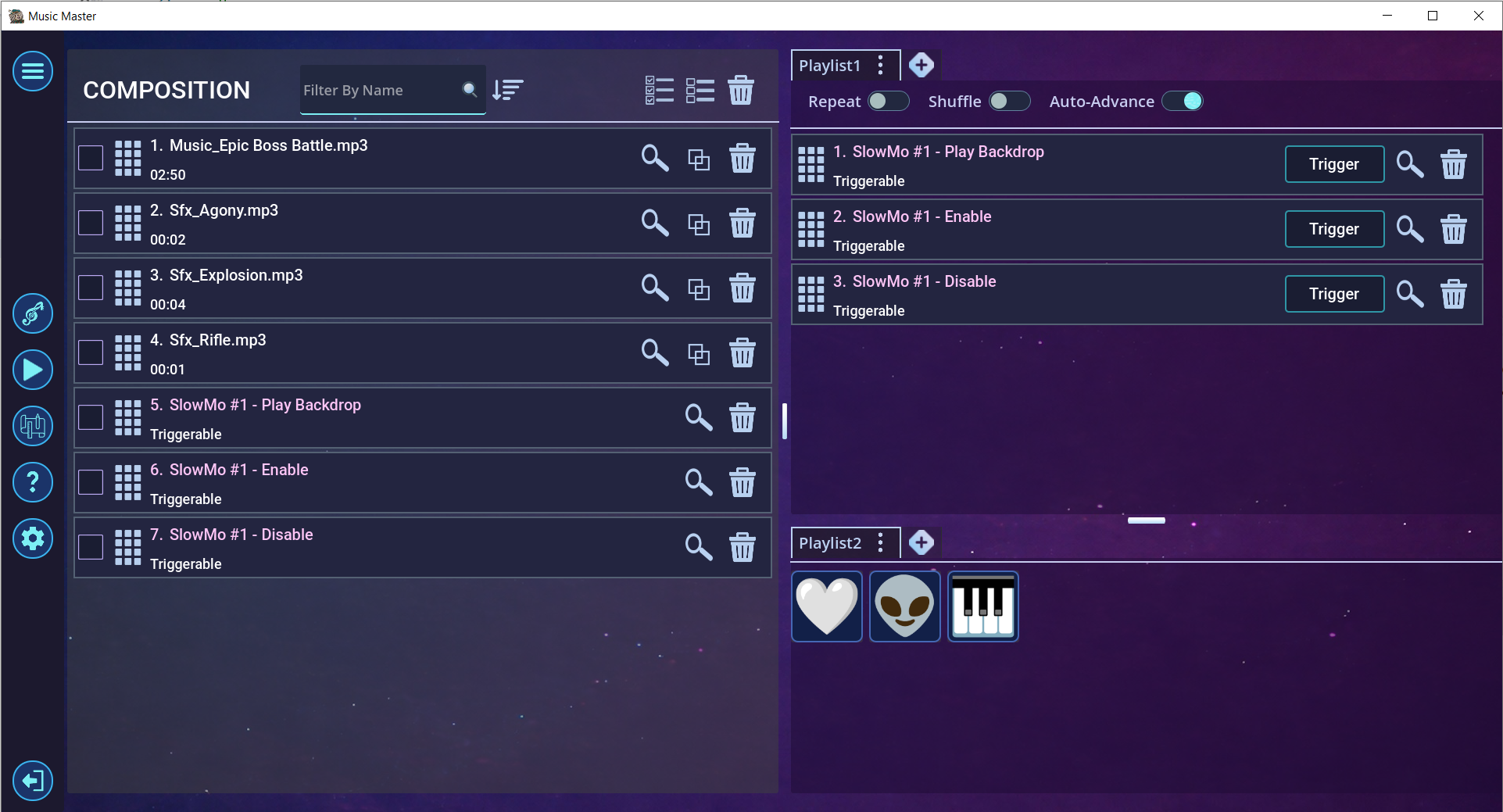
Fig. 2 - Effect in the Composition view.
- Now trigger the event “SlowMo #1 - Play Backdrop” by pressing the “Trigger” button. The background track will begin playing.
- At the right moment, trigger the event “SlowMo #1 - Enable”. That will trigger the slowmo transition.
- The backdrop track and sfx tracks will slow down, and muffle effect will be applied (if selected).
- Have fun during the slow motion! You can play sound effects, and they will be slowed down as well.
- Trigger the event “Muffle #1 - Disable” to turn off the effect.
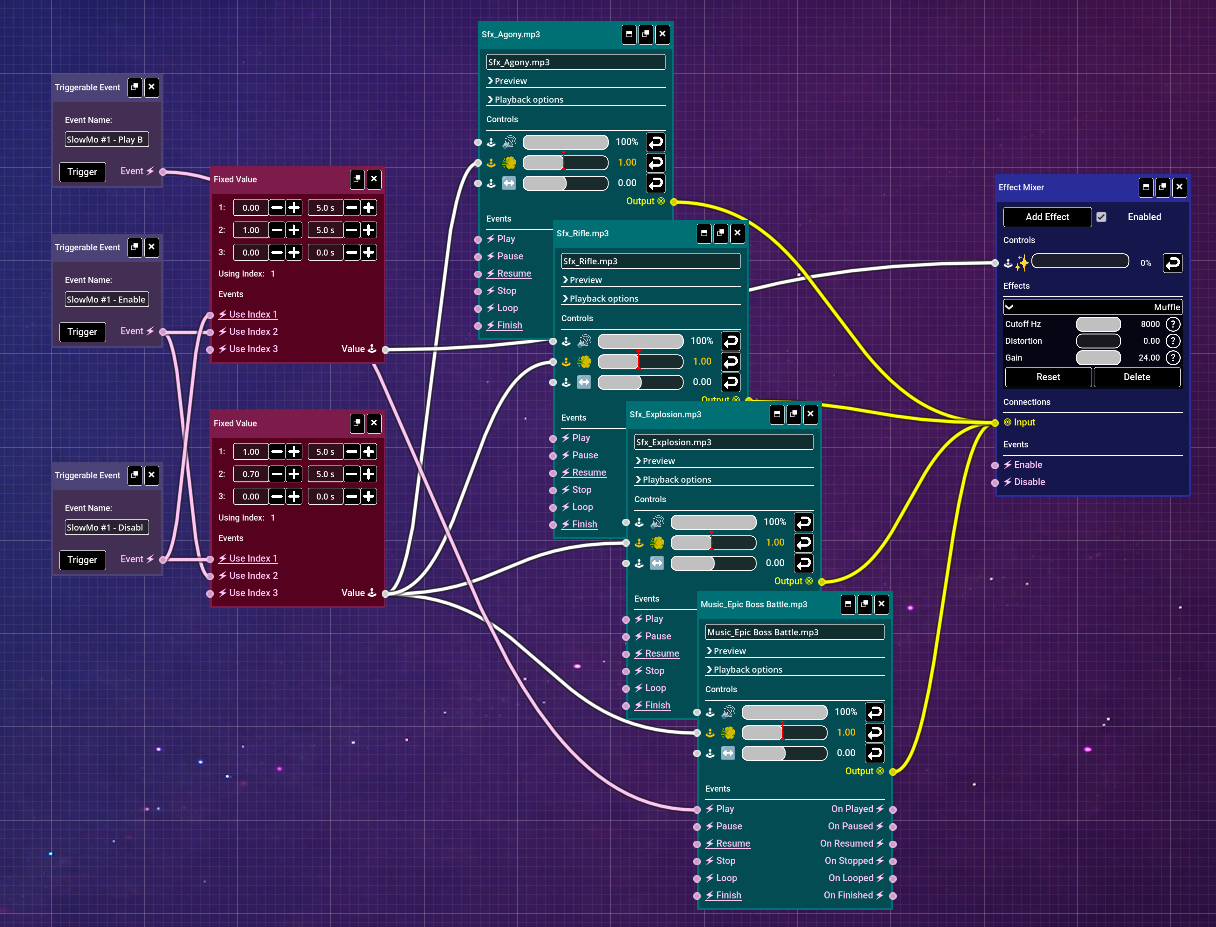
Fig. 3 - Effect in the Editor view.
- Using the editor, you can fine-tune the effect to your liking. Try experimenting!


Ready when you are
Use this and other cinematic effects with Music Master. Try it out now!