What Is Track Trimming?
Track trimming means using only a selected portion of a track instead of the entire file.
A trimmed track will play only the part that has been selected.
 Hint
HintTo split a track into multiple different parts, duplicate it several times and trim each copy separately.
How to Trim a Track
Track trimming is available in the Editor view.
To open the editor, click the Editor icon in the side menu.

Fig. 1 - Editor icon.
Each added track displays a waveform preview.
Next to it are controls for the start and end points of the track.
You can trim a track in two ways:
- By dragging the colored handles on the waveform preview. The left handle sets the start, and the right handle sets the end of the track.
- By changing the values in the start and end controls manually.
In both cases, the start position must come before the end position.
The trimmed section is marked with a different color on the waveform preview.
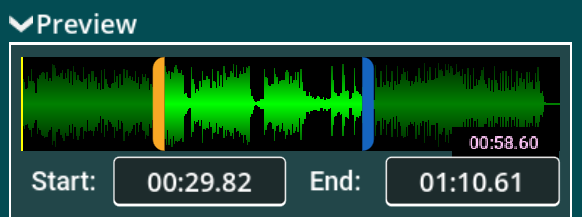
Fig. 2 - Trimmed track.