Installing the application
Download Music Master before purchasing or upgrading:
- Windows: download the Installer or Standalone version from the Music Master website.
- Android: install Music Master from Google Play.
On Windows:
- If you downloaded the .msi installer:
- Run it and follow the installer instructions. The installer will place the app in the default user folder.
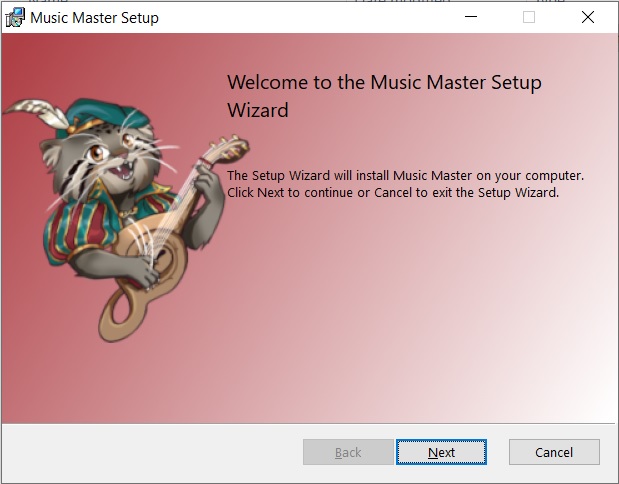
Installer window
- After installation, run the Music Master shortcut on your desktop.
- Run it and follow the installer instructions. The installer will place the app in the default user folder.
- If you downloaded the .zip version:
- Extract it to any folder on your drive.
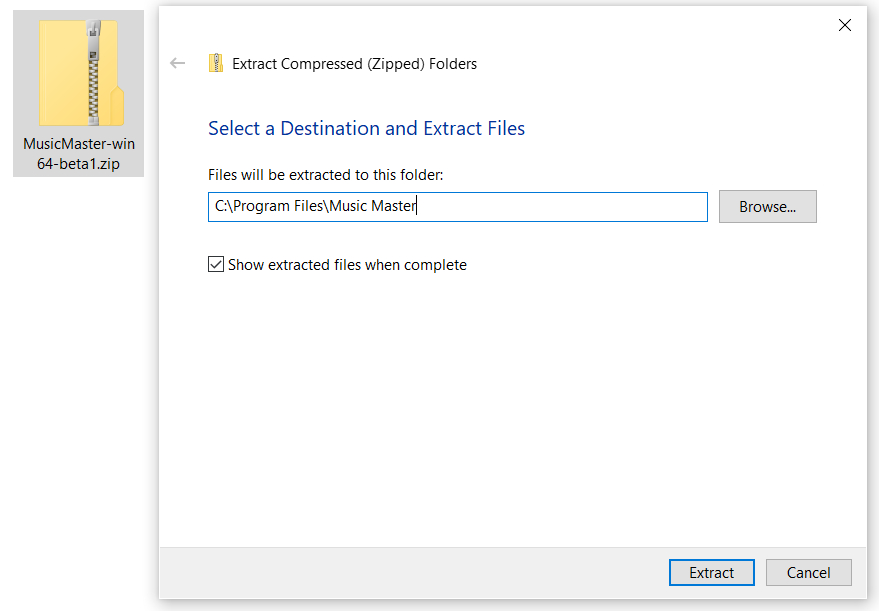
Extracting the .zip file
- Then run MusicMaster.exe from that folder.
- Extract it to any folder on your drive.

Application icon
On Android, complete the installation in Google Play and open Music Master from your device.
Starting and upgrading the application
Music Master starts in the Free tier. To unlock the Full tier:
- Click Upgrade button in Music Master app.

Upgrade button
- Click Purchase a new license button.
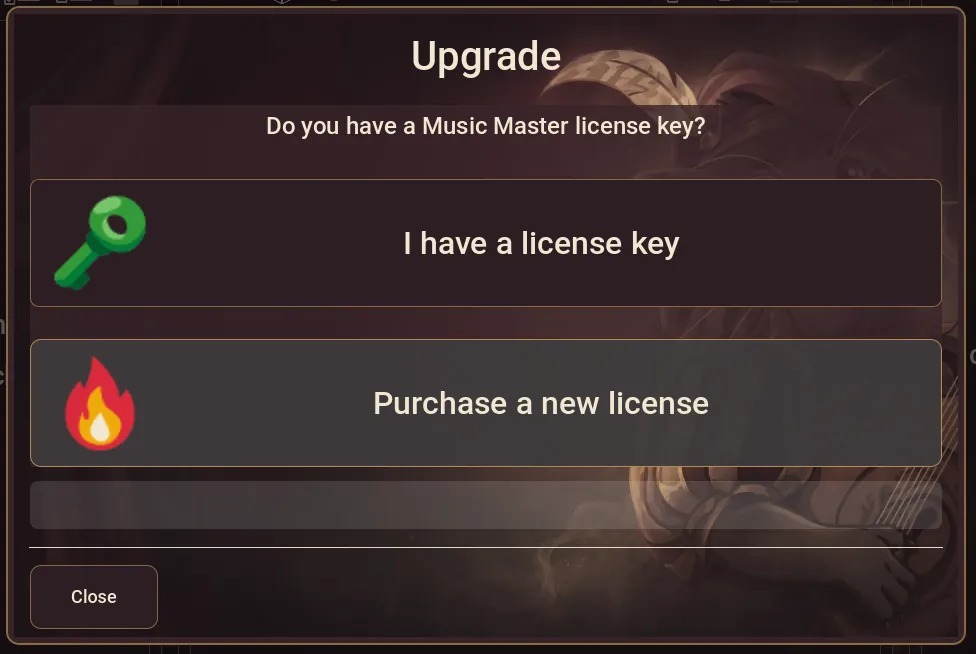
Purchase button
- Enter your email address and continue to checkout. That email will be used to send license key to.
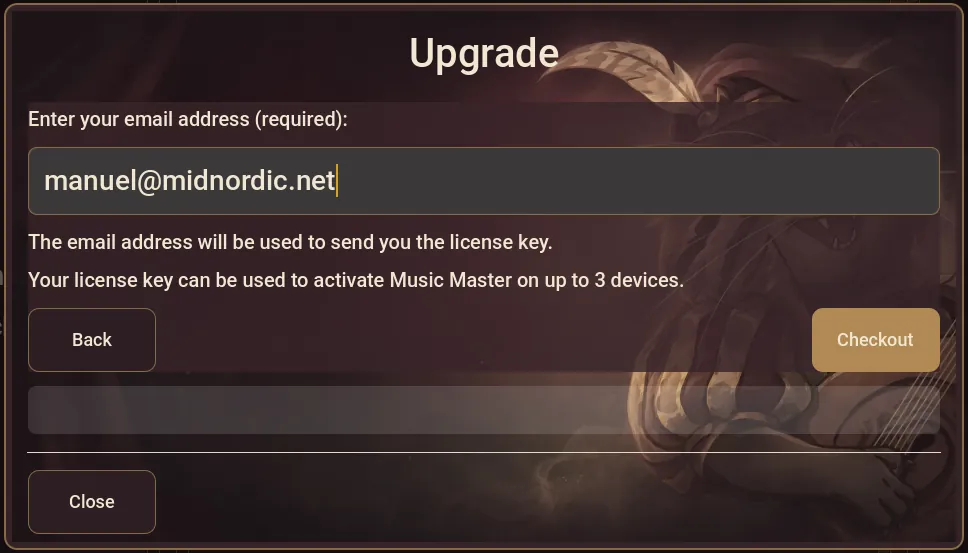
Email and checkout
- Follow the steps on the checkout page to complete your purchase.
- Wait a moment while the server verifies your email and license key.
- After the purchase is completed, you will receive an email containing your license key.
- Return to Music Master and enter the same email address and the license key on the activation screen.
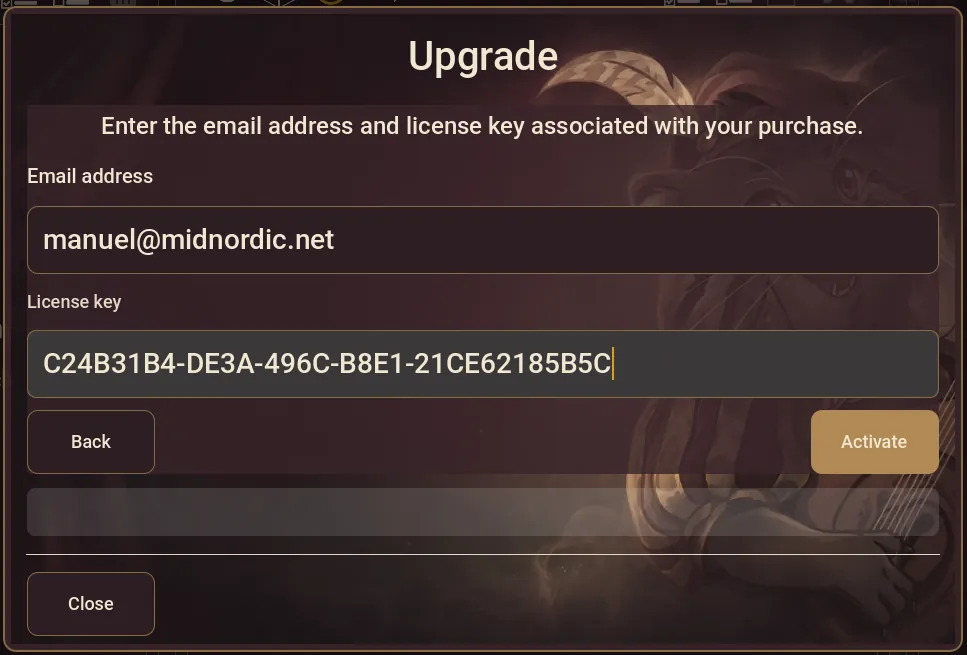
Activation
After successful verification, the Full tier will be unlocked.
An active internet connection is required during the process!