Music Master allows you to use cinematic techniques described on our blog. They help evoke strong emotions in players and enhance the dramatic impact of a scene.
Adding cinematic techniques to your project
To add a cinematic technique to the project, click the plus icon in the Cinematiques tab.
A window will appear with a list of cinematic techniques to choose from.
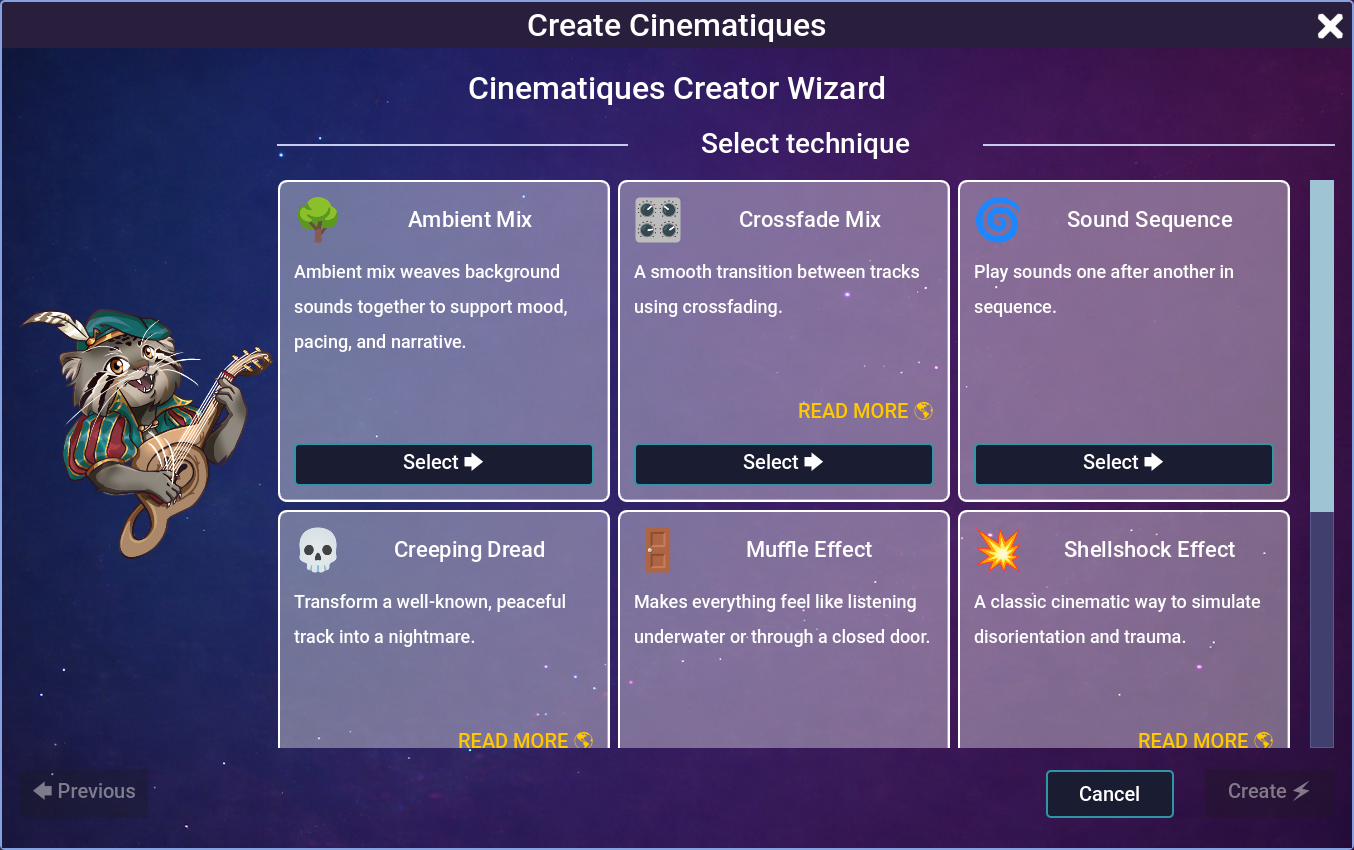
Cinematic techniques window.
To read more about a technique, click READ MORE. Your browser will open the blog post describing that technique.
Select the techniques you want to add and click Add.
The techniques will be added to the project and shown in the lower list.
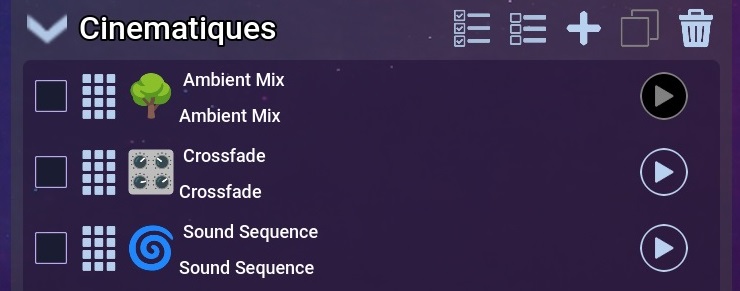
Added cinematic techniques.
Filling in parameters
Each cinematic technique can be customized by:
- choosing the tracks it uses
- changing parameters
To do this, select a technique from the list. The Inspector will display its details. Each technique has a different set of parameters.
Parameters marked as (required) are mandatory and cannot be left empty.
To choose a track, click Select track… and pick it from the list of tracks added to the project.
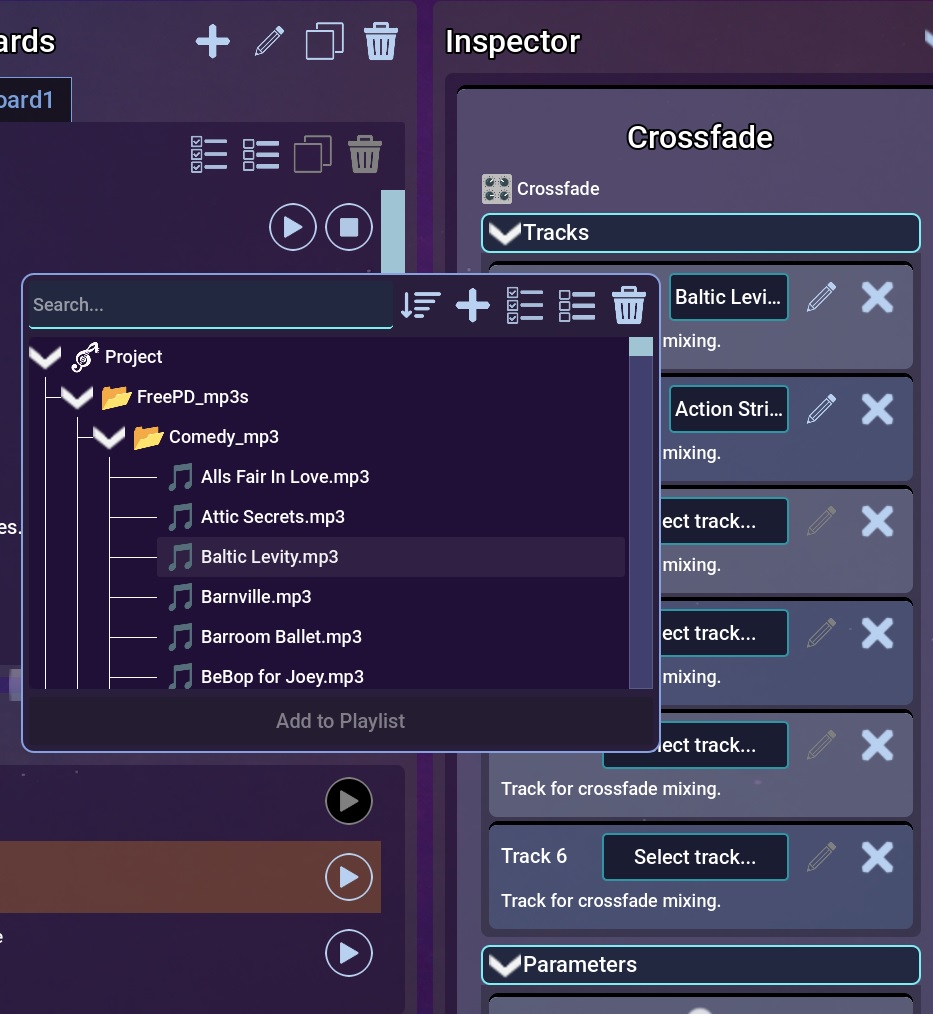
Selecting a track.
Using cinematic techniques
You can use cinematic techniques from the Now Playing view. They are located in the right column. Press the technique’s button to activate it.
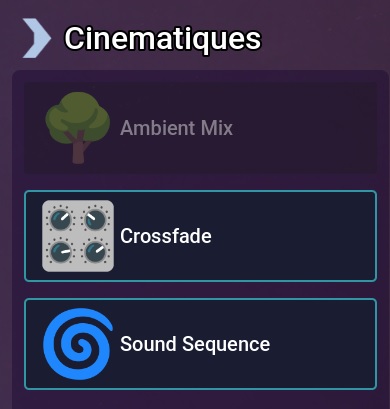
Cinematic techniques ready to use.
Not all techniques can be mixed together. Some technique buttons may be disabled because of this.
Some techniques also have a specific activation/deactivation time, reflected by a progress bar on the technique button.
Next steps
Cinematic techniques automatically configure many things in the editor. At any time, you can switch to the editor view and see how a technique was built.
By analyzing them, you can better understand how the editor works and start creating your own techniques and trigger them using events.