A track can be played in multiple ways:
- from the main playlist
- from the sound effects playlist
- using events
- from the Project view
- from the Editor view
- from the Now Playing view
Tracks are played in three different modes:
- exclusive
- layered
- single
Each mode behaves differently and offers different possibilities.
Playback Modes
Exclusive (main playlists)
Only one track can play in this mode at a time.
When you start a new track, all other tracks using this mode will be stopped.
This mode is used by the main playlists to simulate the behavior of a traditional music player.
Layered (soundboards)
Any number of tracks can play simultaneously in this mode.
Starting a new track will not stop others using this mode.
This mode is used by soundboards. It allows you to play the same sound effect multiple times, layering them on top of each other.
Single
Only one instance of a given track can play at a time.
Starting that track again will not stop other tracks using this mode.
This mode is used by the editor and events. It supports more complex logic and enables advanced sound design operations.
Playing tracks from the main playlist (exclusive mode)
Tracks in the playlist have buttons for play, pause, and stop — just like in other music players.
The pause button appears when the track is currently playing.
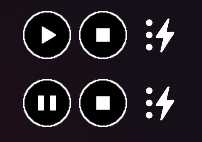
Play button in the main playlist.
Playing tracks from a soundboard (layered mode)
Tracks in a soundboard appear as symbol buttons.
To play a track, press its corresponding button.
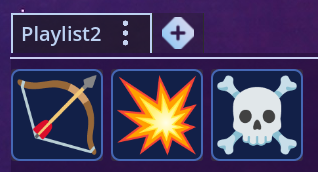
Buttons in a soundboard.
Playing tracks using events (single mode)
Events can only be added to soundboards.
If an event is added to a soundboard:
- in the Project view it includes a Trigger button that lets you trigger the event
- in the Now Playing view it appears as a button; pressing it triggers the event
Playing tracks from the Editor view (single mode)
Every track can also be found in the editor, represented as a node (block).
Click the Play icon on the node to play the track in single mode.
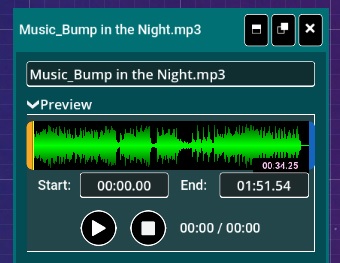
Play button on a track node in the editor.
Playing tracks from the Now Playing view
The Now Playing view shows all currently playing tracks.
Each track includes playback control buttons, similar to those in the playlist.
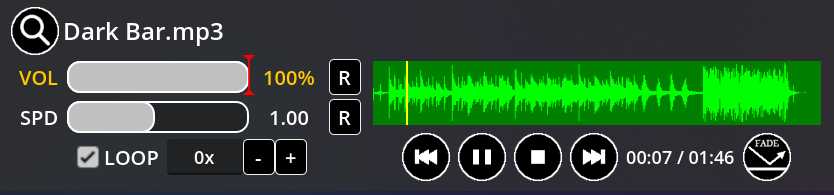
Track in the Now Playing view.
Controlling all playing tracks
At the top of the Now Playing view, there are global control buttons that affect all currently playing tracks.
They allow you to:
- resume all paused tracks
- pause all tracks
- stop all tracks

Global playback control buttons.
These buttons are useful when you want to stop everything at once without managing each track individually.
Track parameters
The following track parameters can be changed during playback:
- volume (0–100%)
- speed (0.1–2.0×)
- panning (left speaker only – both speakers – right speaker only)
- looping (0 = infinite – 100×)
Arrow buttons reset parameters to their default values.
 Hint
Hint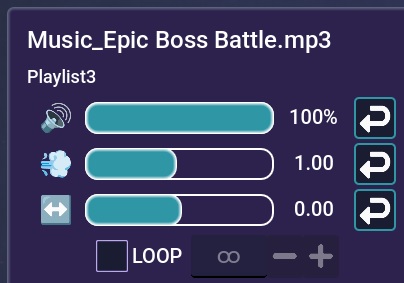
Track parameters.