What is track trimming?
Track trimming means using only a selected portion of a track instead of the entire file.
A trimmed track will play only the part that has been selected.
How to trim a track?
Track trimming is available from:
- the Project view (Inspector)
- the Editor view
Each track displays a waveform preview with start/end controls.
You can trim a track in two ways:
- by dragging the colored handles on the waveform preview (left = start, right = end)
- by changing the values in the start and end controls manually
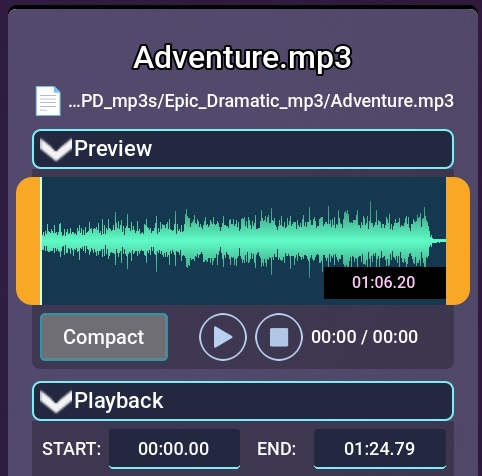
Controls.
In both cases, the start position must come before the end position.
The trimmed section is marked with a different color on the waveform preview.
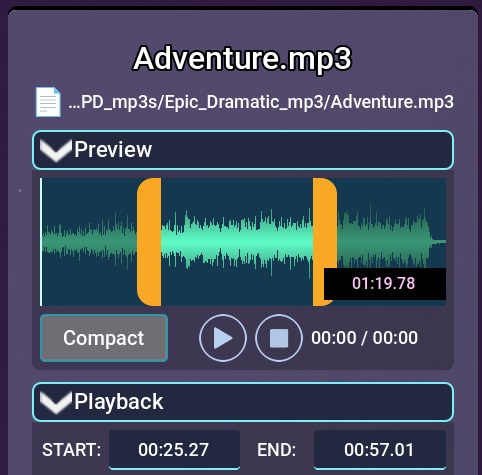
Trimmed track.
By default, the waveform preview is shown in compact mode (compact). To get better resolution, disable the Compact toggle below the waveform preview. The preview will expand, allowing you to select the start and end points more precisely.