Playlists are used to categorize elements (tracks, events) according to the user’s needs.
Each new project contains at least two playlists you can add elements to: the main playlist and a soundboard.
Types of playlists
There are two types of playlists:
- main playlist (playlist)
- soundboard (soundboard)
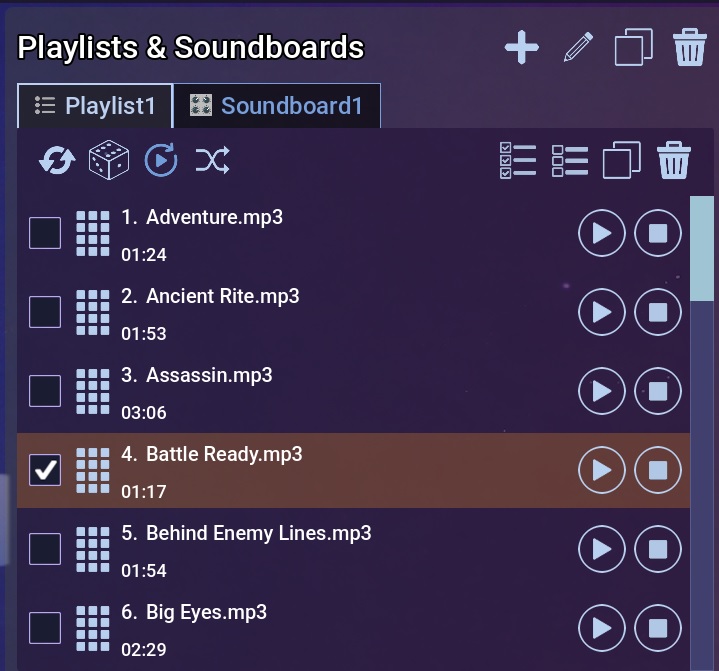
Two types of playlists.
Main playlist (playlist)
The main playlist is designed to store songs that should be played in a specific order.
Playback from the main playlist works like in other music players:
- only one track from the main playlist can play at the same time
- tracks play one after another
- you can enable playlist looping (repeat)
- you can enable random track order (shuffle)
- you can enable track transitions (crossfade)
- you can disable automatically moving to the next track (auto-play)
To play a track from the playlist, click the Play button on the right side of the track in the playlist.
Soundboard (soundboard)
A soundboard is designed for quickly triggering short sound effects.
Items in a soundboard can be assigned a symbol that will be displayed as a button in the player view.
Playback from a soundboard works a bit differently:
- any number of tracks can be played at the same time
- tracks are played only when the button is clicked
To play a track from the list, click the Play button on the right side of the track in the playlist.
Creating a new playlist
To create a new playlist, click the plus icon. A menu will appear where you choose whether you want to create a regular playlist or a soundboard.
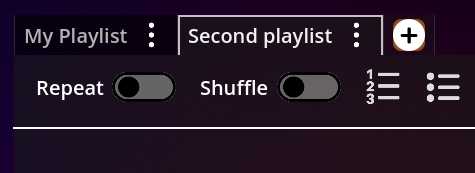
Adding a new playlist.
The new playlist will be created with a default name that you can change later.
Renaming a playlist
To rename a playlist, click the pencil icon and enter a new name.
 Oops!
Oops!Deleting a playlist
To delete a playlist, click the trash icon. The playlist will be removed.
Copying (duplicating) a playlist
You can copy a playlist along with all its elements. To do this, click the duplicate icon. The playlist will be copied, and its name will have “(copy)” appended at the end.
Adding tracks to a playlist
To add tracks to a playlist:
- Select the playlist you want to add tracks to.
- Select tracks in the Media column.
- Click the Add to Playlist button.
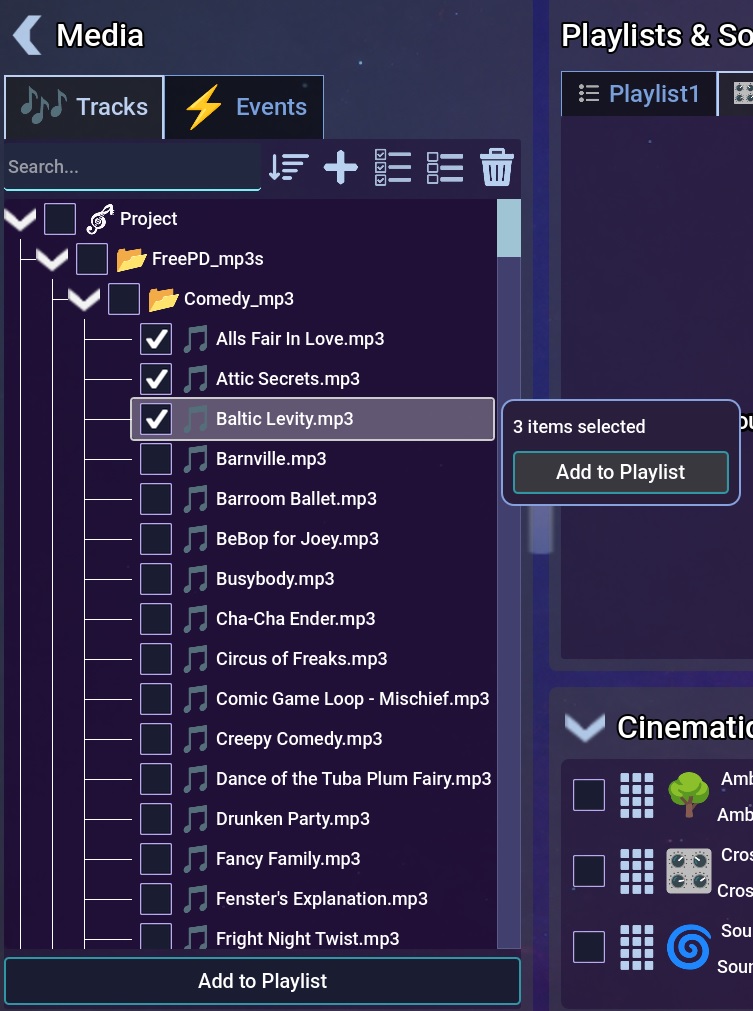
Adding tracks to a playlist.
Removing tracks from a playlist
To remove tracks from a playlist, select the tracks and click the trash icon.
This removes the selected tracks only from the current playlist. If the element was present in other playlists, it will remain there.
Changing element order
Elements in a playlist can be arranged in any order.
To change the order, click the drag handle icon on the left side of an element, drag the element to a new position, and release the mouse button.