Mixes are tracks composed of several other tracks. They are used to create various effects by layering audio tracks on top of each other. Each mix type was originally designed to support one of the cinematic techniques available in the app. However, mixes can also be used freely in your own creative ways.
Adding Mixes
Mixes can be added manually from the editor. From the editor menu, select one of the available mixes.
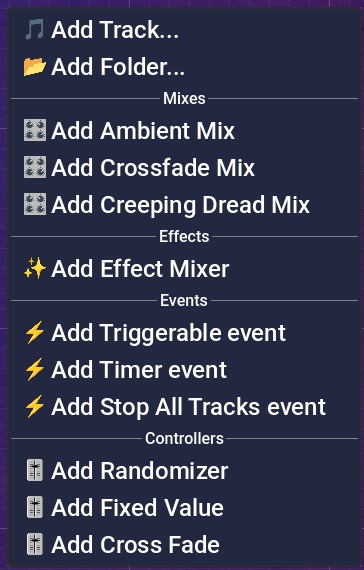
Fig. 1 - Editor menu.
Types of Mixes
There are three types of mixes you can experiment with:
- Ambient Mix
- Crossfade Mix
- Creeping Dread Mix

Fig. 2 - All mix types.
All mixes share some common features:
- mix name (editable in the editor or Composition view)
- playback buttons (visible in the editor and main playlist)
- volume, speed, and stereo position controls
- ability to attach sound effects (Output)
- Play, Pause, Resume, Stop events
- “Add Track” button for adding tracks (editor view only)
Ambient Mix
The Ambient Mix is designed for creating soundscapes — layered sets of sounds that simulate a specific environment.
For example, to recreate the interior of a tavern, you might combine the sound of conversations, clinking mugs, and muffled rain outside the window. All of these should play simultaneously.
The Ambient Mix allows you to play multiple tracks at once and easily manage their volume levels and loop settings.
Presets
This mix allows you to define presets, which you can switch between with a single click.
This means you can store multiple soundscapes inside one mix — simply configure each as a separate preset and switch between them during playback.
A preset remembers:
- volume levels of all attached tracks
- the mix’s own parameters (volume, speed, position)
To rename a preset, click the ✏️ button and enter a new name.
To save a preset, click the 💾 button.
To adjust the transition time between presets, set the value in the “Transition duration” field (in seconds).
 Hint
Hint
Fig. 3 - Ambient mix with attached tracks.
Now Playing View
When the mix is playing, it looks like this:

Fig. 4 - Ambient mix during playback.
From this view, you have access to all mix features except changing attached tracks — that can only be done in the editor.
Crossfade Mix
The Crossfade Mix allows smooth transitions between tracks during playback.
The selected track’s volume gradually increases while the others fade out, creating a seamless crossfade effect.

Fig. 5 - Crossfade mix with attached tracks.
Transition Time and Buttons
The mix includes a transition duration parameter, which determines how many seconds the smooth transition takes.
Each attached track has a transition button, which raises the volume of the selected track and fades out the others.
Now Playing View
When the mix is playing, it looks like this:

Fig. 6 - Crossfade mix during playback.
From this view, you have access to all mix features except modifying attached tracks — that is only possible in the editor.
Creeping Dread Mix
The Creeping Dread Mix was created to support the Creeping Dread cinematic effect.
It transforms a familiar track into something unsettling by:
- slowing down the main track
- layering a second, disturbing audio track on top
Hint
Fig. 7 - Creeping Dread mix with attached tracks.
Transition Time and Controls
The mix includes a transition duration parameter, which determines how long the full transformation takes.
To start the transformation, press the “Activate” button.
To reverse the transformation, press the “Deactivate” button.
Now Playing View
When the mix is playing, it looks like this:

Fig. 8 - Creeping Dread mix during playback.
From this view, you can access all mix features except modifying attached tracks — that can only be done in the editor.
Sound Effects
You can attach an effects mixer to any mix.
From the editor, create an effects mixer and connect it to the mix’s “Output”. Then you can add sound effects to the mixer.

Fig. 9 - Mix with attached effects mixer.