Playlists are used to categorize elements (tracks, events) according to the user’s needs.
Each new composition contains at least two playlists to which elements can be added: the main playlist and the sound effects playlist.
Types of Playlists
There are two types of playlists:
- main (located in the upper part of the screen)
- sound effects (located in the lower part of the screen)

Fig. 1 - Two types of playlists.
Main Playlist
The main playlist is designed to hold tracks that should be played in a specific order.
Playback from the main playlist works similarly to other music players:
- only one track from the main playlist can play at a time
- tracks play one after another
- you can enable playlist looping (repeat)
- you can enable random order (shuffle)
- you can disable automatic transition to the next track (auto-advance)
To play a track from the playlist, click the “Play” button located to its right.
Sound Effects Playlist
The sound effects playlist is designed for quickly triggering short sound effects.
After adding a track or event to this playlist, it appears as a button with a symbol. You can choose the symbol from a list of available icons.
Playback from this playlist works differently:
- any number of tracks can be played at the same time
- tracks are played only when their button is clicked
To play a track, simply click its corresponding button.
Creating a New Playlist
To create a new playlist (of any type), click the plus icon located to the right of the last playlist tab.
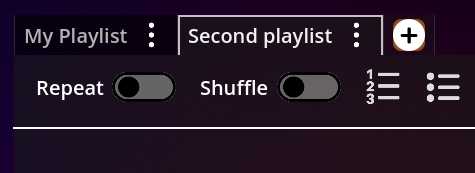
Fig. 2 - Add new playlist button.
A new playlist will be created with a default name.
Renaming
To rename a playlist, click the ellipsis icon and select “Rename playlist” from the dropdown menu, then enter the new name.
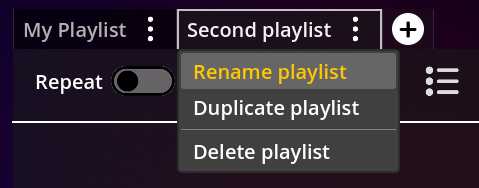
Fig. 3 - Renaming a playlist.
 Oops!
Oops!Deleting
To delete a playlist, click the ellipsis icon and select “Delete playlist.” The playlist will be removed.
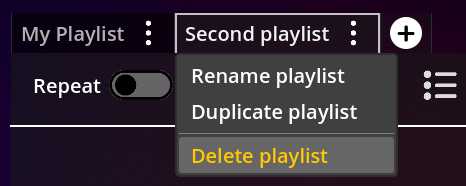
Fig. 4 - Deleting a playlist.
Duplicating
You can duplicate a playlist along with all its elements.
To do this, click the ellipsis icon and select “Duplicate playlist.”
A copy of the playlist will be created with “(copy)” added to its name.
You can remove this suffix by renaming the playlist.
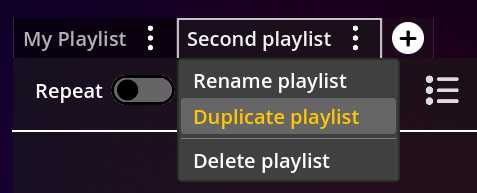
Fig. 5 - Duplicating a playlist.
Adding Elements
Elements can be moved to a playlist from the Composition view.
Select the Composition view from the side menu.
To move an element, click and drag it from the composition onto the playlist on the right side of the window.
You can also select multiple elements using the checkbox on the left side of each item and move them together.
Clicking the “select / deselect all” icon allows you to quickly select or unselect all elements in the composition.

Fig. 6 - Adding elements to a playlist.
Removing Elements
To remove an element from a playlist, click the lightning / more options icon, then select “Remove” from the dropdown menu.
This removes the element only from the current playlist.
If the same element exists in other playlists, it will remain there.

Fig. 7 - Removing an element from a playlist.
Changing Element Order
Elements in a playlist can be arranged in any order.
To change the order, click the drag handle icon on the left side of an element, drag it to a new position, and release the mouse button.
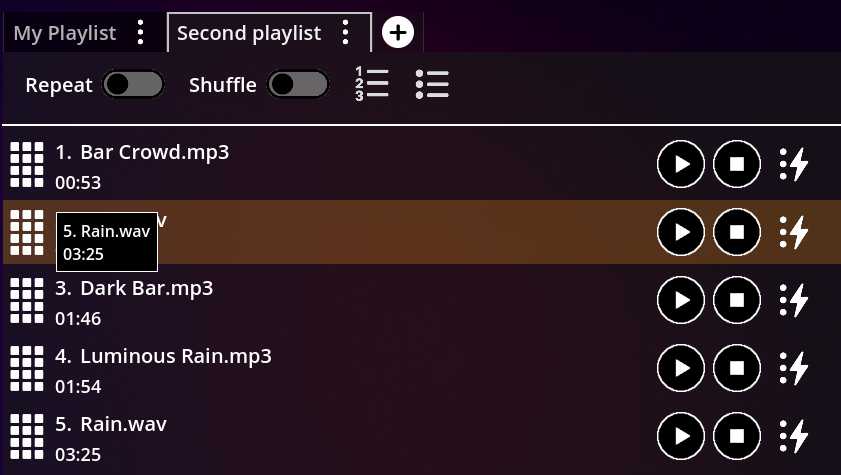
Fig. 8 - Reordering playlist elements.