What is Broadcast?
Broadcast streams Music Master’s final audio mix directly to your players. Listeners only need a web browser — they do not need to install Music Master or create an account.
Music Master creates a temporary room with a link and a four-digit PIN. Share both with your listeners so they can hear the session audio.
 Oops!
Oops!Starting a broadcast
- Start Music Master and open or create a project.
- In the Main Menu, select Integrations -> Broadcast.
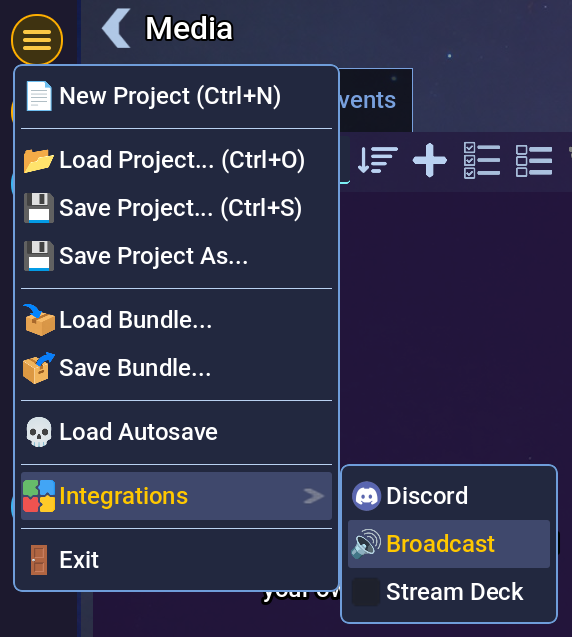
Broadcast entry in the Integrations menu.
- The Broadcast window will open. Select Start.
- The first time the Broadcast host starts, Windows may display a firewall permission popup for MusicMaster.Plugins.Broadcast. Select Allow access so the host can connect to listeners through the internet.
- Wait until the status changes to Ready. Music Master will display a room link and a four-digit PIN.
- Use the copy buttons next to the link and PIN, then send both values to your listeners.
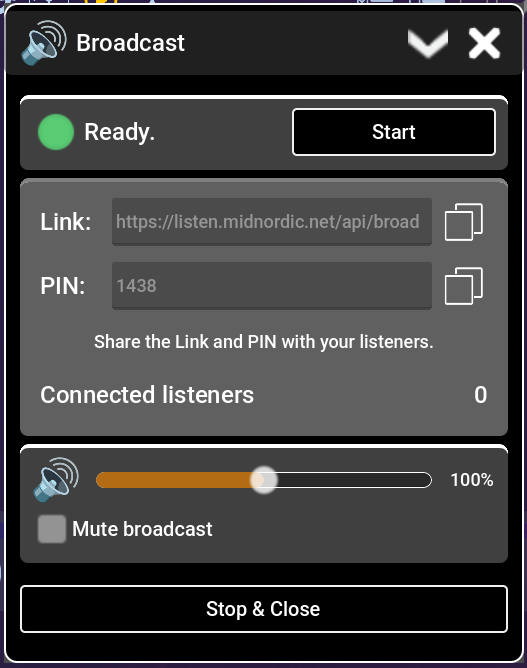
Broadcast control window with the room link and PIN.
Keep Music Master and the Broadcast window running during the session. The window displays the current status and number of connected listeners.
 Watch out!
Joining as a listener
Each listener should:
- Open the shared room link in a browser.
- Enter the four-digit PIN.
- Select Join Audio.
- Wait for the browser to establish the connection and begin playing the stream.
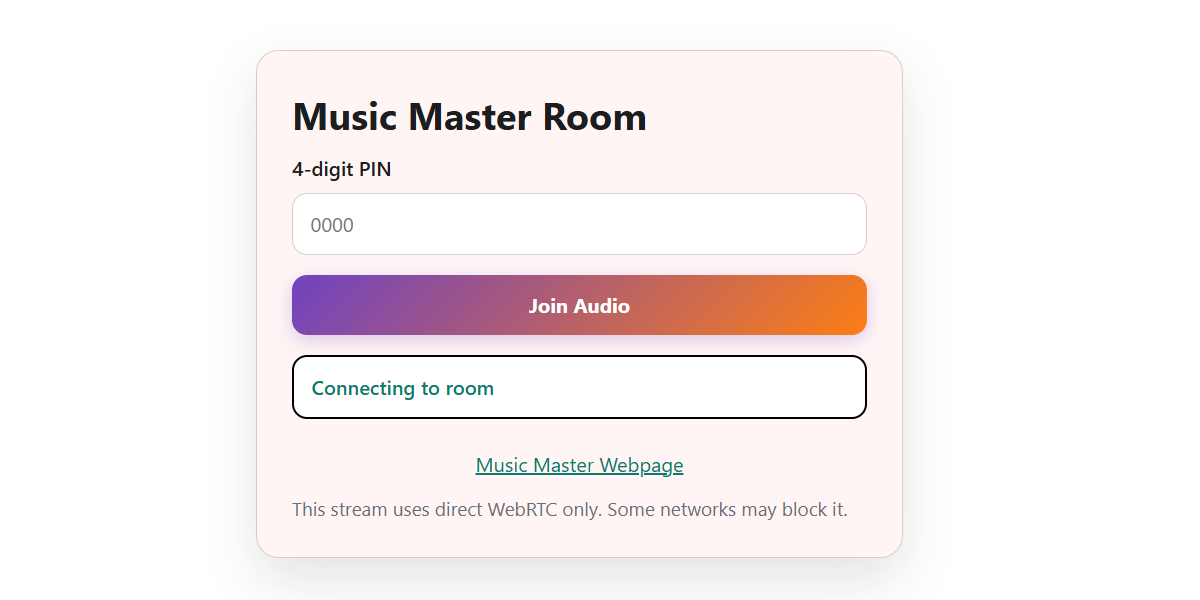
Broadcast room webpage.
If the browser blocks automatic audio playback, the listener may need to interact with the page or allow audio playback for the site.
Watch out!Volume and mute controls
Use the volume slider in the Broadcast window to change the level sent to listeners. This adjustment affects only the broadcast and does not change Music Master’s main output volume.
Enable Mute broadcast to temporarily silence the stream without closing the room.
Ending a broadcast
Select Stop & Close or close the Broadcast window. Music Master disconnects all listeners and closes the temporary room. The old link and PIN cannot be reused; starting another broadcast creates a new room.
Broadcast and Discord
Broadcast and Discord streaming cannot run at the same time because both integrations use Music Master’s final audio stream. Stop the active integration before starting the other one.
Privacy and connection limits
- Audio travels directly from your computer to each listener through WebRTC. The Music Master service coordinates the connection but does not relay or store the audio.
- Anyone who has both the room link and PIN can listen while the room is active. Share them only with the intended players.
- A room supports up to six simultaneous listeners.
- Rooms are temporary and close when the broadcaster disconnects.
Troubleshooting
A listener cannot connect
- Check that the link and PIN were copied correctly.
- Make sure the Broadcast window still shows Ready or Broadcasting.
- Ask the listener to use an up-to-date browser and reload the room page.
- Check firewall, VPN, and network restrictions on both sides.
Broadcast uses a direct WebRTC connection. Some restrictive workplace, school, mobile, or VPN networks block this traffic. Connection may be impossible on those networks. Trying a different network often resolves the problem.
The listener is connected but cannot hear audio
- Make sure Mute broadcast is disabled and the broadcast volume is above zero.
- Play a track in Music Master and confirm it is audible locally.
- Ask the listener to allow audio playback in the browser and check the browser tab and device volume.
The room closed unexpectedly
Keep Music Master running and connected to the internet. Closing the Broadcast window, exiting Music Master, or losing the broadcaster’s connection closes the room.