What is Stream Deck?
Stream Deck is a controller with programmable buttons, connected to an application that lets you launch shortcuts, macros, and actions in other programs with a single click — for example switching scenes, controlling audio, triggering effects, playlists, or app functions.
More information: https://www.elgato.com/ww/en/p/stream-deck
Stream Deck can become a convenient controller for Music Master — instead of clicking in the interface, you can quickly trigger music, soundboards, cinematic techniques, and other program functions using a button on the controller.
 Oops!
Oops!Plugin installation
Go through the following steps:
- Install the Stream Deck application (https://www.elgato.com/ww/en/s/downloads).
- Install and activate the Music Master application (installation and activation).
- Install the plugin:
- Open the “Plugins” folder in the main Music Master directory (usually
C:\Users\[user]\AppData\Local\MusicMaster\Plugins) - Run the
net.midnordic.musicmaster.streamdeck.streamDeckPluginfile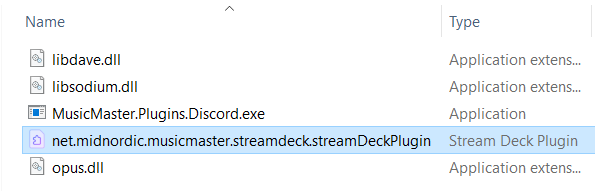
The plugin file.
- Confirm that you want to install the Music Master plugin.
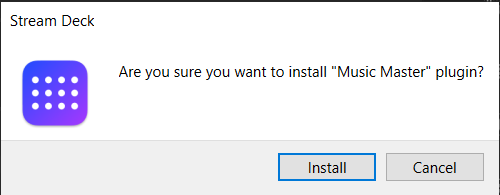
Installation confirmation.
- Open the “Plugins” folder in the main Music Master directory (usually
- Start the Stream Deck application (it should launch automatically during plugin installation).
- Start the Music Master application.
- In the Main Menu, select Integrations -> Stream Deck.
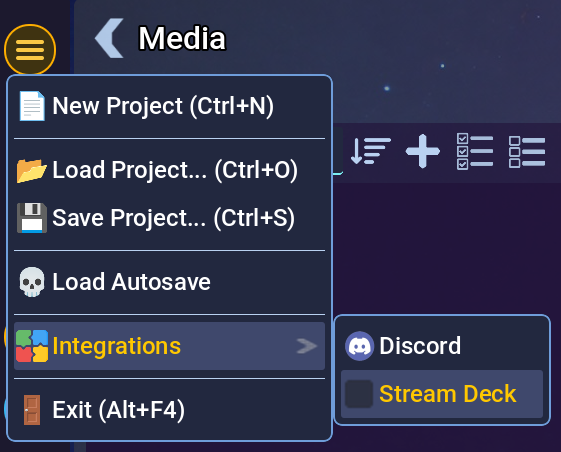
Menu item in the main menu.
- The message “Connecting to Stream Deck…” will appear.
- After a short moment, the connection between Music Master and Stream Deck should be established.
Using the plugin
After installing the plugin, a “Music Master” entry will appear in the Stream Deck application. View of the first few actions.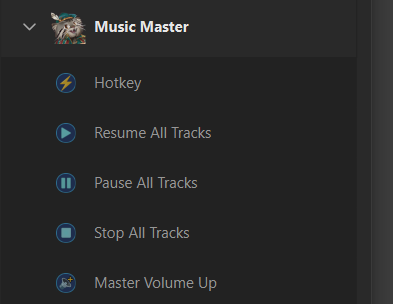
It contains all buttons available in the plugin. To set one up, simply drag it onto an appropriate empty slot.
General buttons
- Hotkey - a general shortcut button that can be used when assigning shortcut keys in Music Master. To use it, select the appropriate shortcut (hotkey) in the application and press this button on the controller. The shortcut will be assigned to that button. You can assign both global shortcuts and shortcuts for individual tracks.
Volume buttons
- Master Volume Up - increases volume by 5%.
- Master Volume Down - decreases volume by 5%.
- Master Volume Mute / Unmute - mutes / restores volume.
Buttons affecting all tracks
- Resume All Tracks - all paused tracks will be resumed.
- Pause All Tracks - all currently playing tracks will be paused.
- Stop All Tracks - all tracks will be stopped.
Buttons affecting the active playlist
- Play Next Track - moves to the next track.
- Play Previous Track - moves to the previous track.
- Play / Pause Current Track - resumes / pauses the currently playing track.
- Stop Current Track - stops the currently playing track.
- Fade In/Out Current Track - gradually fades out / fades in the currently playing track.
Configurable buttons
- Play / Pause Track - plays / pauses a selected track.
- Play SFX - plays a selected soundboard track.